Skip to navigation Skip to content
Your Simworks Cart
simworks studios logo transparent
€0.00 0
  • Home
  • Shop
    • Flight Simulator 2024
      • Aircraft
    • Flight Simulator 2020
      • Aircraft
      • Scenery
    • Gift Card
    • My Wishlist
    • My Cart
  • In Development
  • Help
    • Support
  • About
    • Contact Form
Useful Links
  • My Account – Login
  • Orders
  • Documentation
  • Encyclopedia
  • Wishlist
  • Logout
€0.00 0

F-4B/N Phantom II Manuals

18
  • F-4B Phantom II (Legacy) – Version History
  • F-4B Phantom II (PBR) – Version History
  • F-4B Phantom II (Both) – Known Issues
  • F-4B Phantom II (Legacy) – Installation help
  • Electronic Warfare equipment and Countermeasures
  • Air-to-Ground weapons
  • Air-to-Air weapons
  • Weapon control panels
  • Checklists
  • Automatic Carrier Landing System
  • Navigation equipment
  • Air Data Computer
  • Basic aircraft systems
  • Aircraft configuration manager
  • Fleet Placer
  • Payload manager
  • General information & specifications
  • Main Manual of F-4B/N Phantom II

Midway Battlegroup Changelog

1
  • Midway Battlegroup – Version History

Midway Battlegroup Manuals

3
  • Midway Battlegroup – Known Issues
  • Midway Battlegroup – Installation Help
  • Main Manual of Midway Battlegroup

Kodiak 100 Manuals

2
  • Kodiak 100 – Amphibian Supplement
  • Kodiak 100 – Known issues

Live Scenery Manuals

1
  • Live Scenery Options

Maia Airport Manuals

1
  • Maia Airport – Known issues

Nimitz Class Manuals

1
  • Nimitz Class – Main Manual

PC-12 Legacy Manuals

1
  • PC-12 Legacy – Known Issues

RV-10 Manuals

1
  • RV-10 – Known issues

RV-14/14A Manuals

1
  • RV-14/14A – Known issues

T-37B Tweet Manuals

2
  • T-37B Tweet – Main Manual
  • T-37B Tweet – Installation help

Zenith CH701 STOL Manuals

1
  • Zenith CH701 STOL – Known issues

Carriers Extended Manuals

2
  • Carriers Extended! SDK (CEX SDK)
  • Carriers Extended: US Navy

T-37B Tweet Changelog

1
  • T-37B Tweet – Version History

DC Designs F/A-18E/F/G Changelog

1
  • DC Designs F/A-18E/F/G – Version History

Zenith CH701 STOL Changelog

1
  • Zenith CH701 STOL – Version History

Kodiak 100 Changelog

1
  • Kodiak 100 – Version History

Maia Airport Changelog

1
  • Maia Airport – Version History

Nimitz Class Changelog

1
  • Nimitz Class (P3Dv4/5) – Version History

Okavango Delta Changelog

1
  • Okavango Delta – Version History

PC-12 Legacy Changelog

1
  • PC-12 Legacy – Version History

RV-10 Changelog

1
  • RV-10 – Version History

RV-14/14A

1
  • RV-14/14A – Version History

RV-8 Changelog

1
  • RV-8 – Version History

GA-8 Airvan Manuals

2
  • GA-8 Airvan – Known Issues
  • GA-8 Airvan – Known Issues
View Categories
  • Home
  • Documentation
  • F-4B/N Phantom II Manuals
  • Weapon control panels

Weapon control panels

Estimated Reading Time: 5 min read

Forward cockpit #

Missile status panel #
F-4 missile status panel

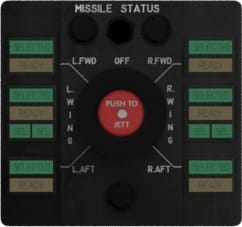
The missile status panel (MSP) indicates status of the missiles mounted on the aircraft fuselage and hardpoints. Green SELECTED lights indicate that a missile exists on the station and is selected. Amber READY lights illuminate to indicate that the missile type selective has been powered. The four positions labeled L FWD, R FWD, L AFT and R AFT refer to the fuselage-mounted AIM-7 Sparrow missiles.

The L WING and R WING positions can be used by either AIM-7 sparrow or AIM-9 Sidewinder missiles. If an AIM-7 is present the upper selected light will illuminate. If one or more Sidewinders are available the SEL light that corresponds to the selected missile will be lit. Selecting different missile types and cycling through AIM-9 missiles is done through the missile control panel. The selector knob on the MSP is used to select and jettison missiles from the above stations.

The MSP is also equipped with a TK light which illuminates when a tank is loaded on the centerline pylon. When a tank is loaded on the centerline, firing of the forward fuselage-mounted AIM-7 Sparrows is inhibited to avoid the risk of missile or fire contact with the fuselage tank and damage to the tank or aircraft.

Weapons control panel #
F-4

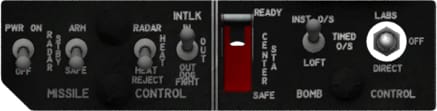
The weapons control panel is situated below the missile selector panel and is split in two parts

  • The left part, enscribed missile control, is used to control the air-to-air missile firing options.
  • The right part, denoted bomb control, is used to operate certain functions of the air-to-ground weapons employment that will be described in detail later.

Bomb control panel #
F-4 bomb control panel (dogbone)

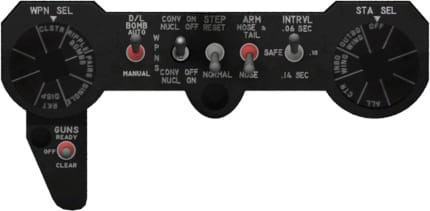
The bomb control panel (also called dogbone) is located forward of the control stick. It is used to select the active stations and release modes for air-to-ground weapons as well jettisoning from all stations. From left to right the functions are

  • Gun: activates deactivates the gunpod if carried
  • WPN SEL: this knob allows you to select from possible release modes
    • RKT DISP: used to reset stepping of bomb stations and also for firing rockets when loaded
    • SINGLE: every press of the pickle switch releases a single munition
    • PAIRS: every press of the pickle switch releases a pair of munitions
    • RIPPLE: continuous release of munitions one-by-one for as long as the pickle switch is kept pressed
    • CLSTR: continuous release of munitions in pairs as long as the pickle switch is kept pressed
  • WPNS (late F-4B and F-4N): not modeled
  • STEP RESET: spring loaded switch used to reset the station release sequence when changing release modes
  • ARM switch
    • NOSE & TAIL: arms both nose and tail fuze of carried bombs. Allows deployment of fins for retarded bombs Mk.82SE
    • SAFE: weapon will be jettisoned and not explode
    • NOSE: arms the nose fuze only. On Mk.82SE fins will not deploy
    • INTVL: controls the interval between bomb releases in RIPPLE and CLSTR modes. Options are 0.6, 0.1 and 0.14 seconds between releases.
    • STA SEL: used to select the station from which to release jettison

AWW-1 fuze panel #
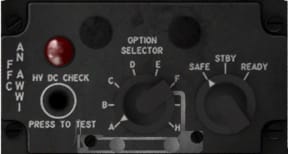
AWW-1 panel

The AWW-1 fuze panel is located on the right console. It is used to turn bomb fuzes on and off. This is done by setting the power knob to STBY or READY for 30 seconds.

 For the fuzes to activate the knob must be set to READY indicated by a red light illuminating on the panel.

Forward RADAR scope #

F-4 forward RADAR scope and optical sight unit

The forward RADAR scope consists of the RADAR scope and the optical sight unit (OSU)

Symbology of the RADAR scope will be covered in the next chapter.

Tthe osu is used for the visual aiming of the aircraft’s weapons through an adjustable gunsight. To turn on the gunsight:

  1. Unfold the gunsight: if folded by clicking on the glass
  2. Slide open the lens cover by clicking on its handle
  3. Click the top-right knob on the RADAR scope to turn on the reticle
  4. Gunsight elevation can be adjusted using the mil setting knob to the left of the combiner glass.
  5. The drum is lit at night from a light inside the OSU mount. The light can be toggled by pressing the switch at the top-left of the RADAR scope

Rear cockpit #

RADAR controls #
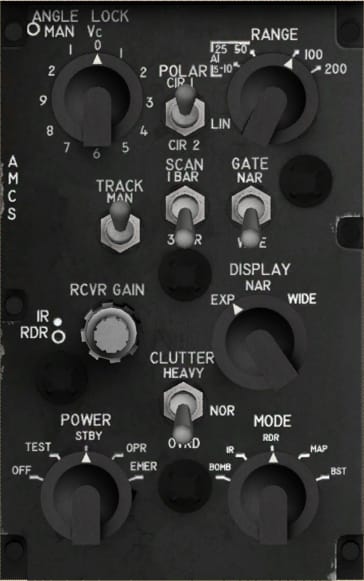
RADAR control panel
Rear cockpit RADAR scope
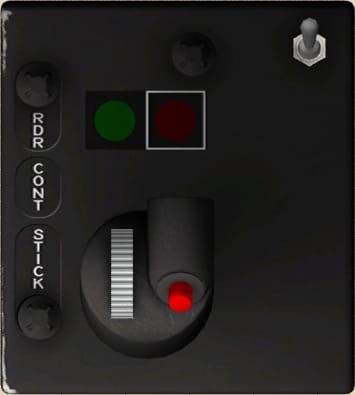
RADAR control stick

RADAR scope #

The aft RADAR scope is used by the RIO to search for targets. The symbology and use is covered in the next chapter.

RADAR control panel #

The RADAR control panel is used by the RIO to power-up the RADAR system as well as change between different RADAR modes. Its operation is covered in the next chapter .

RADAR stick #

The stick is used to control the RADAR cursor. It can be operated in two ways

  1. Mouse control from the rear cockpit
    • Left click and hold on the stick. When the left click mouse button is held pressed, mouse movement is translated onto the stick.
    • Middle click on the stick initiates half-action when a target return is bracketed. Drops the target if pressed a second time.
    • Right click on the stick initiates full-action when a target return is bracketed and already in half-action. Drops the target if pressed a second time.
    • Mouse wheel rotation increases/decreases elevation
  2. Keyboard control
    • Arrow keys control the RADAR cursor
    • Tab initiates half/full-action
    • Caps lock drops selected target
Updated on 12/05/2025

How useful was this article?

  • Happy
  • Normal
  • Sad

Share This Article :

  • Facebook
  • X
  • LinkedIn
  • Pinterest
Air-to-Air weaponsChecklists
Table of Contents
  • Forward cockpit
    • Missile status panel
    • Weapons control panel
    • Bomb control panel
    • AWW-1 fuze panel
    • Forward RADAR scope
  • Rear cockpit
    • RADAR controls
      • RADAR scope
      • RADAR control panel
      • RADAR stick

Shop

  • FS2020 Aircraft
  • FS2020 Scenery
  • FS2024 Aircraft
  • Gift Card

Account

  • My Account
  • My Orders
  • Wishlist
  • Documentation
  • Support

About

  • Blog
  • Community
  • Terms & Conditions
  • Privacy Policy
  • Brand Assets
  • Collaborate

Follow Us

Discord Facebook X-twitter Youtube
© 2026 Simworks Studios LTD. All rights reserved
simworks studios payment icons white
Simworks Studios
Manage Consent
To provide the best experiences, we use technologies like cookies to store and/or access device information. Consenting to these technologies will allow us to process data such as browsing behavior or unique IDs on this site. Not consenting or withdrawing consent, may adversely affect certain features and functions.
Functional Always active
The technical storage or access is strictly necessary for the legitimate purpose of enabling the use of a specific service explicitly requested by the subscriber or user, or for the sole purpose of carrying out the transmission of a communication over an electronic communications network.
Preferences
The technical storage or access is necessary for the legitimate purpose of storing preferences that are not requested by the subscriber or user.
Statistics
The technical storage or access that is used exclusively for statistical purposes. The technical storage or access that is used exclusively for anonymous statistical purposes. Without a subpoena, voluntary compliance on the part of your Internet Service Provider, or additional records from a third party, information stored or retrieved for this purpose alone cannot usually be used to identify you.
Marketing
The technical storage or access is required to create user profiles to send advertising, or to track the user on a website or across several websites for similar marketing purposes.
  • Manage options
  • Manage services
  • Manage {vendor_count} vendors
  • Read more about these purposes
View preferences
  • {title}
  • {title}
  • {title}
Simworks Studios
Manage Consent
To provide the best experiences, we use technologies like cookies to store and/or access device information. Consenting to these technologies will allow us to process data such as browsing behavior or unique IDs on this site. Not consenting or withdrawing consent, may adversely affect certain features and functions.
Functional Always active
The technical storage or access is strictly necessary for the legitimate purpose of enabling the use of a specific service explicitly requested by the subscriber or user, or for the sole purpose of carrying out the transmission of a communication over an electronic communications network.
Preferences
The technical storage or access is necessary for the legitimate purpose of storing preferences that are not requested by the subscriber or user.
Statistics
The technical storage or access that is used exclusively for statistical purposes. The technical storage or access that is used exclusively for anonymous statistical purposes. Without a subpoena, voluntary compliance on the part of your Internet Service Provider, or additional records from a third party, information stored or retrieved for this purpose alone cannot usually be used to identify you.
Marketing
The technical storage or access is required to create user profiles to send advertising, or to track the user on a website or across several websites for similar marketing purposes.
  • Manage options
  • Manage services
  • Manage {vendor_count} vendors
  • Read more about these purposes
View preferences
  • {title}
  • {title}
  • {title}