Skip to navigation Skip to content
Your Simworks Cart
simworks studios logo transparent
€0.00 0
  • Home
  • Shop
    • Flight Simulator 2024
      • Aircraft
    • Flight Simulator 2020
      • Aircraft
      • Scenery
    • Gift Card
    • My Wishlist
    • My Cart
  • In Development
  • Help
    • Support
  • About
    • Contact Form
Useful Links
  • My Account – Login
  • Orders
  • Documentation
  • Encyclopedia
  • Wishlist
  • Logout
€0.00 0

F-4B/N Phantom II Manuals

18
  • F-4B Phantom II (Legacy) – Version History
  • F-4B Phantom II (PBR) – Version History
  • F-4B Phantom II (Both) – Known Issues
  • F-4B Phantom II (Legacy) – Installation help
  • Electronic Warfare equipment and Countermeasures
  • Air-to-Ground weapons
  • Air-to-Air weapons
  • Weapon control panels
  • Checklists
  • Automatic Carrier Landing System
  • Navigation equipment
  • Air Data Computer
  • Basic aircraft systems
  • Aircraft configuration manager
  • Fleet Placer
  • Payload manager
  • General information & specifications
  • Main Manual of F-4B/N Phantom II

Midway Battlegroup Manuals

3
  • Midway Battlegroup – Known Issues
  • Midway Battlegroup – Installation Help
  • Main Manual of Midway Battlegroup

Midway Battlegroup Changelog

1
  • Midway Battlegroup – Version History

Kodiak 100 Manuals

2
  • Kodiak 100 – Amphibian Supplement
  • Kodiak 100 – Known issues

Live Scenery Manuals

1
  • Live Scenery Options

Maia Airport Manuals

1
  • Maia Airport – Known issues

Nimitz Class Manuals

1
  • Nimitz Class – Main Manual

PC-12 Legacy Manuals

1
  • PC-12 Legacy – Known Issues

RV-10 Manuals

1
  • RV-10 – Known issues

RV-14/14A Manuals

1
  • RV-14/14A – Known issues

T-37B Tweet Manuals

2
  • T-37B Tweet – Main Manual
  • T-37B Tweet – Installation help

Zenith CH701 STOL Manuals

1
  • Zenith CH701 STOL – Known issues

Carriers Extended Manuals

2
  • Carriers Extended! SDK (CEX SDK)
  • Carriers Extended: US Navy

Maia Airport Changelog

1
  • Maia Airport – Version History

Nimitz Class Changelog

1
  • Nimitz Class (P3Dv4/5) – Version History

Okavango Delta Changelog

1
  • Okavango Delta – Version History

PC-12 Legacy Changelog

1
  • PC-12 Legacy – Version History

RV-10 Changelog

1
  • RV-10 – Version History

RV-14/14A

1
  • RV-14/14A – Version History

RV-8 Changelog

1
  • RV-8 – Version History

T-37B Tweet Changelog

1
  • T-37B Tweet – Version History

DC Designs F/A-18E/F/G Changelog

1
  • DC Designs F/A-18E/F/G – Version History

Zenith CH701 STOL Changelog

1
  • Zenith CH701 STOL – Version History

Kodiak 100 Changelog

1
  • Kodiak 100 – Version History

GA-8 Airvan Manuals

2
  • GA-8 Airvan – Known Issues
  • GA-8 Airvan – Known Issues
View Categories
  • Home
  • Documentation
  • F-4B/N Phantom II Manuals
  • Payload manager

Payload manager

Estimated Reading Time: 3 min read

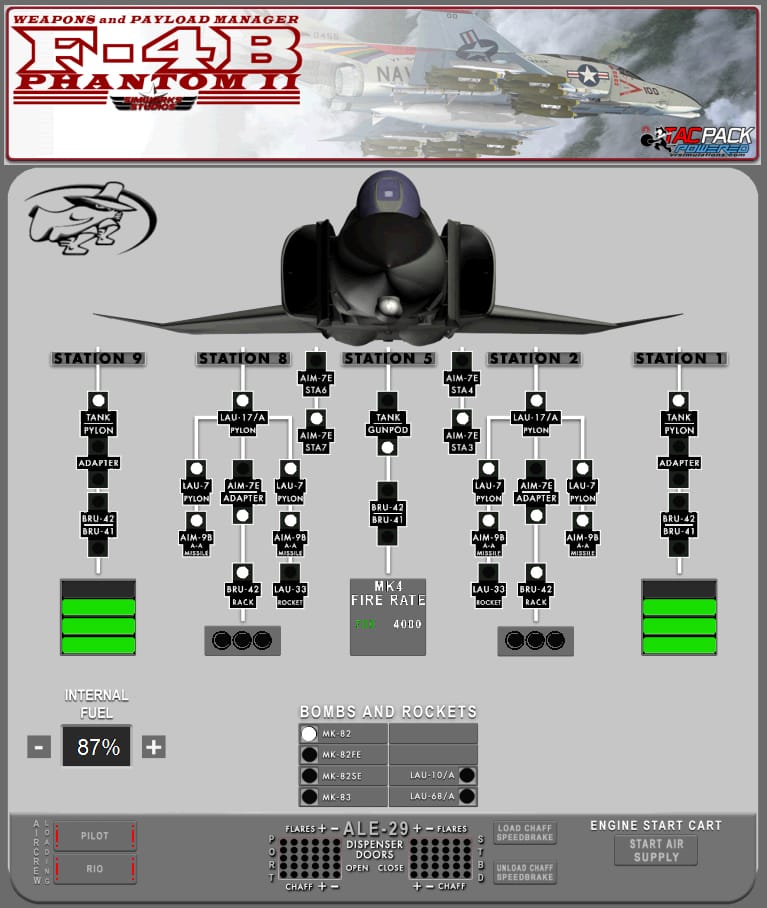
The F-4B/N Payload Manager is used to load weapons and countermeasures on the aircraft, manage fuel and external power. It allows for a great degree of customization and mixing giving you complete freedom to customize your weapons loadout.

The aircraft has nine weapons stations numbered from the left wing to the right.

  • Stations 1 & 9 are the outboard wing stations
  • Stations 2 & 8 are the inboard wing stations
  • Station 5 is the fuselage centerline station
  • Stations 3 & 7 are the aft fuselage sparrow stations
  • Stations 4 & 6 are the forward fuselage sparrow stations

By clicking on a station you can load pylons adapters and or weapons.

Example 1: Loading an AIM-9 #

To load an AIM-9 on station 2 you need to

  • click on LAU-17A to add a pylon
  • click on either of the LAU-7 icons to add an AIM-9 pylon
  • click on AIM-9 to add the missile

Note: clicking on the AIM-9 immediately after the LAU-17A step will automatically load the pylon and missile.

Example 2: Loading an MER #

To load a multiple ejector rack (MER) and Mk.82 bombs in station 5 the process is similar:

  • click on BRU-41 to add the MER. A graphic will appear indicating six circles below the aircraft center
  • click on Mk.82 at the bombs and rockets list
  • click on the circles where you want the mk.82 to be loaded. Loaded positions should be filled circles.

Example 3: Loading external fuel #

  • click on the tank option under stations 1,9 or 5. If you click on a wing tank position it will load tanks on both sides to keep the load symmetrical
  • a graphic will appear showing four stacked slices in black. click on a “slice” to load fuel up to that level. Click on it again to remove it. The options provided are 0%, 25%, 50%, 75%, 100%.
Payload manager

Loading internal fuel #

An internal fuel loading option is provided at the bottom left. It indicates the percentage of internal fuel loaded on the aircraft. The way it is set up to work is that each time you click on the plus symbol the next empty internal tank is filled. If you click on the minus sign the currently used internal tank is emptied. Therefore, from an empty aircraft the sequence of fuelling would be

  1. cell 1
  2. cell 2
  3. cell 4
  4. cell 3
  5. cell 6
  6. cell 5
  7. internal wing tanks at 50%
  8. internal wing tanks at 100%

Countermeasures #

On aircraft that are equipped with the AN/ALE-29A, a countermeasures loading option will be present at the bottom and center of the payload manager. By clicking on the +/- symbols of chaff and or flares you can load and unload countermeasure cartridges. The countermeasures are grouped a first-in-first-out order (FIFO). Therefore if you load up 10 flares first, followed by 20 chaff the flares will need to be expended before chaff is fired.

Mixing of countermeasures is not supported. For example loading chaff-flare-chaff-flare will not fire in that sequence. Instead it will fire chaff-chaff followed by flare-flare. Total chaff and flares combined on each side cannot be more than 30 cartridges.

Chaff can also be loaded in the speed brake well by clicking on the appropriate button. When the speed brakes are deployed the chaff will be released.

Start cart #

A start cart can be shown when on the ground and stopped. The start cart is used to provide external power and air to be able to start the aircraft on the ground. More on that in the checklists chapter.

Other options #

The user can choose whether to show or hide the crew by clicking the appropriate buttons at the bottom left.

Updated on 12/05/2025

How useful was this article?

  • Happy
  • Normal
  • Sad

Share This Article :

  • Facebook
  • X
  • LinkedIn
  • Pinterest
Fleet PlacerGeneral information & specifications
Table of Contents
  • Example 1: Loading an AIM-9
  • Example 2: Loading an MER
  • Example 3: Loading external fuel
  • Loading internal fuel
  • Countermeasures
  • Start cart
  • Other options

Shop

  • FS2020 Aircraft
  • FS2020 Scenery
  • FS2024 Aircraft
  • Gift Card

Account

  • My Account
  • My Orders
  • Wishlist
  • Documentation
  • Support

About

  • Blog
  • Community
  • Terms & Conditions
  • Privacy Policy
  • Brand Assets
  • Collaborate

Follow Us

Discord Facebook X-twitter Youtube
© 2026 Simworks Studios LTD. All rights reserved
simworks studios payment icons white
Simworks Studios
Manage Consent
To provide the best experiences, we use technologies like cookies to store and/or access device information. Consenting to these technologies will allow us to process data such as browsing behavior or unique IDs on this site. Not consenting or withdrawing consent, may adversely affect certain features and functions.
Functional Always active
The technical storage or access is strictly necessary for the legitimate purpose of enabling the use of a specific service explicitly requested by the subscriber or user, or for the sole purpose of carrying out the transmission of a communication over an electronic communications network.
Preferences
The technical storage or access is necessary for the legitimate purpose of storing preferences that are not requested by the subscriber or user.
Statistics
The technical storage or access that is used exclusively for statistical purposes. The technical storage or access that is used exclusively for anonymous statistical purposes. Without a subpoena, voluntary compliance on the part of your Internet Service Provider, or additional records from a third party, information stored or retrieved for this purpose alone cannot usually be used to identify you.
Marketing
The technical storage or access is required to create user profiles to send advertising, or to track the user on a website or across several websites for similar marketing purposes.
  • Manage options
  • Manage services
  • Manage {vendor_count} vendors
  • Read more about these purposes
View preferences
  • {title}
  • {title}
  • {title}
Simworks Studios
Manage Consent
To provide the best experiences, we use technologies like cookies to store and/or access device information. Consenting to these technologies will allow us to process data such as browsing behavior or unique IDs on this site. Not consenting or withdrawing consent, may adversely affect certain features and functions.
Functional Always active
The technical storage or access is strictly necessary for the legitimate purpose of enabling the use of a specific service explicitly requested by the subscriber or user, or for the sole purpose of carrying out the transmission of a communication over an electronic communications network.
Preferences
The technical storage or access is necessary for the legitimate purpose of storing preferences that are not requested by the subscriber or user.
Statistics
The technical storage or access that is used exclusively for statistical purposes. The technical storage or access that is used exclusively for anonymous statistical purposes. Without a subpoena, voluntary compliance on the part of your Internet Service Provider, or additional records from a third party, information stored or retrieved for this purpose alone cannot usually be used to identify you.
Marketing
The technical storage or access is required to create user profiles to send advertising, or to track the user on a website or across several websites for similar marketing purposes.
  • Manage options
  • Manage services
  • Manage {vendor_count} vendors
  • Read more about these purposes
View preferences
  • {title}
  • {title}
  • {title}